EN
 ID



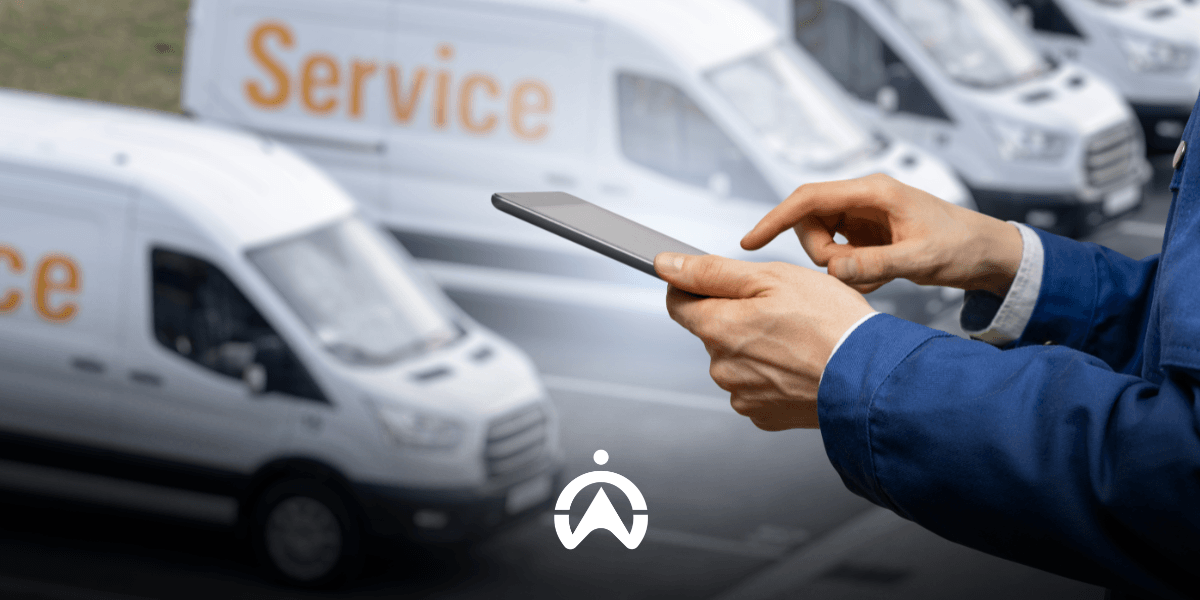
After receiving an email confirming that you have joined the Cartrack family, you can access the Cartrack mobile application. Downloading the Cartrack app is the first essential step to enjoy greater convenience in monitoring your vehicle fleet. The following are the steps for using the Cartrack mobile application and its various features.
1. Download and login
From your phone or tablet, go to the Play Store (Android) or App Store (iOS). Search for the "Cartrack" app and select the one developed by the Cartrack Development Team. After downloading, click "Sign In" and enter the username and password provided to you via email. Check the "Admin Login" option if you are logged in as an admin; uncheck the "Stay Logged In" option if you want to be automatically logged in every time you open the app, without having to repeat the sign-in process.
2. Track vehicle location
After logging in, you will see a Google Maps view with location points for your fleet vehicles. You can change the map display by clicking the square-shaped icon on the right-hand side. There are options for Satellite (a real-life top-down view) and Default (a standard road map view without showing buildings). Circular markers with numbers indicate the number of vehicles in that area. Click on a numbered circle to zoom in and see which vehicles are located in that area.
3. Monitor fleet activity
The number of active vehicles appears immediately when you open the app. To view a summary of fleet trip activity, simply click the three-line icon in the search bar and select "Activity Feed." Here, you can instantly access details regarding each vehicle's completed trips—such as distance traveled, time, duration, average speed, and driving alerts. Vehicle locations are also listed, and you can view them on a map by clicking the green button featuring a triangle icon.
4. View vehicle details
You can instantly identify the vehicle type—such as a car or motorcycle—via the vehicle icon on the map. A green icon indicates the vehicle is active (engine running), while gray indicates it is inactive. Click on the vehicle on the map, use the search bar, or select it from the Vehicle List (located at the bottom of the screen) to view vehicle details. Displayed details include the driver's name, start time of operation, odometer reading, speed, and remaining fuel percentage. When viewing vehicle details, a "share" button allows you to share the vehicle's location information with other applications—such as WhatsApp, email, or Skype. The shared information consists of a Google Maps link indicating the vehicle's location.
5. Check daily travel history
At the bottom of the screen are several menus, one of which is "Trips." Select the vehicle and date for which you want to view your daily trip log. This daily trip log shows the start and end times, duration, mileage, and odometer readings. A trip counts from the time the engine is started until it is turned off, including warming up the engine. Therefore, it's possible to have multiple trips in a single day. For each trip, you can add specific notes and categorize whether the trip was for business or personal use.
6. Check vehicle notifications
Make sure you do not miss anything important by checking notifications. Click the three-line icon in the search bar column, then select Alerts. Notification settings are configured via FleetWeb, such as vehicle ignition (with details including driver name, time, location, vehicle make and licence plate), driving safety alerts, and vehicle service schedules.
7. View fleet reports
In the Reports menu, you can instantly view several reports: Speeding, Usage, Risk, Last Position, and Alerts. Data retrieved for these reports covers a maximum period of 90 days, with a maximum 7-day summary. Please note that reports from this Cartrack app are intended for quick checks only; they are not available as PDF or Excel files that can be sent, unlike in FleetWeb.
Enjoy the convenience of fleet monitoring right in the palm of your hand with the Cartrack mobile app! Contact us now to install the Cartrack GPS Tracker and start monitoring your vehicle fleet anytime, anywhere from your mobile phone. You can also get a FREE DEMO of Cartrack products!